The server must be a Windows computer. We do not support using a NAS drive. Those use a different operating system and do not support the file locking that Windows supports.
All systems must be wired. We do not support networking Forms Boss using wireless (wifi) because of possible poor connectivity which results in database corruption.
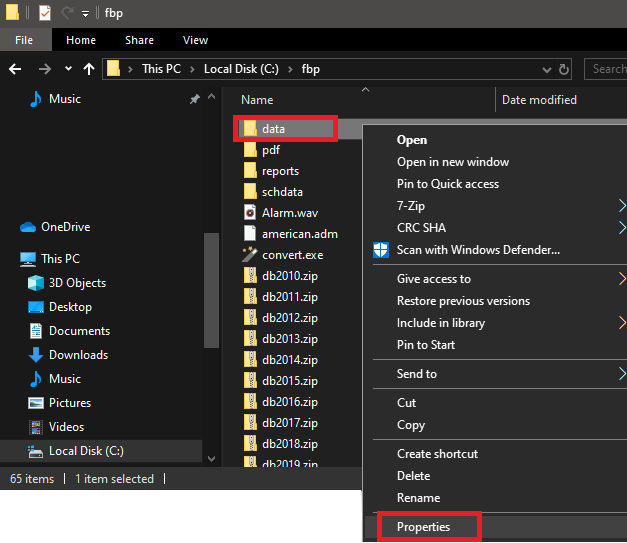
At the server, open File Explorer.
Right-click your c:\fbp\data folder.
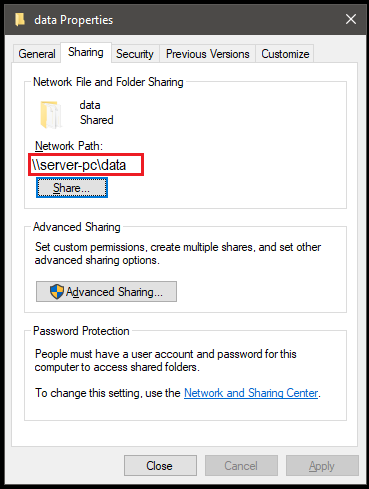
Left-click Properties.
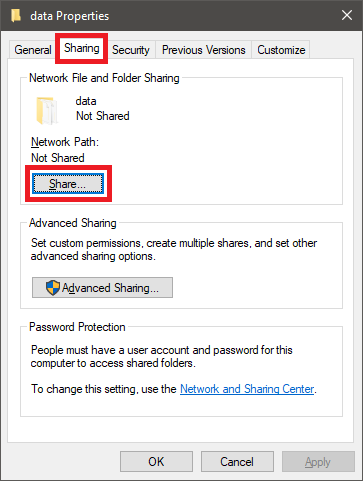
Click the Sharing tab.
Click the Share... button
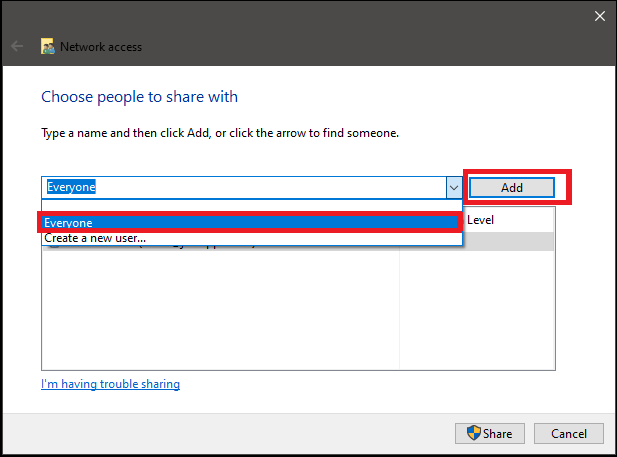
Click the down arrow and click Everyone.
Click the Add button
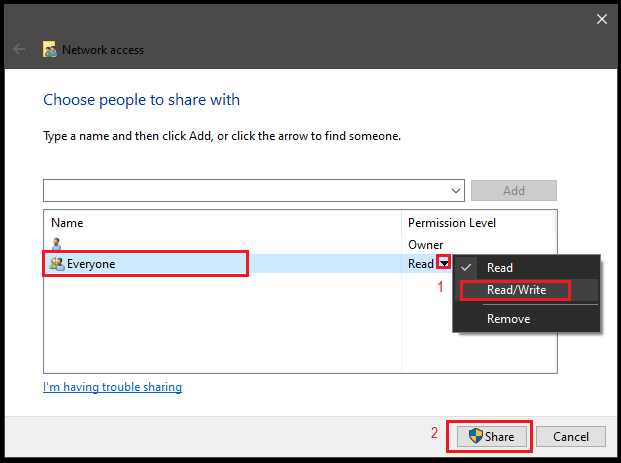
Click the arrow beside of Read and left-click Read/Write.
Click the Share button
Click the Done button.
Write down the path that shows below the words "Network Path:"
Click the Close button.
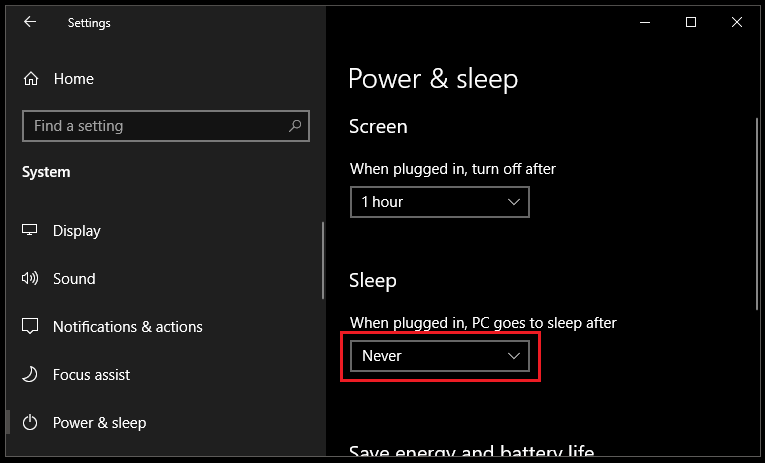
Open the "Power & sleep settings" in Windows.
Change the Sleep setting to "Never".
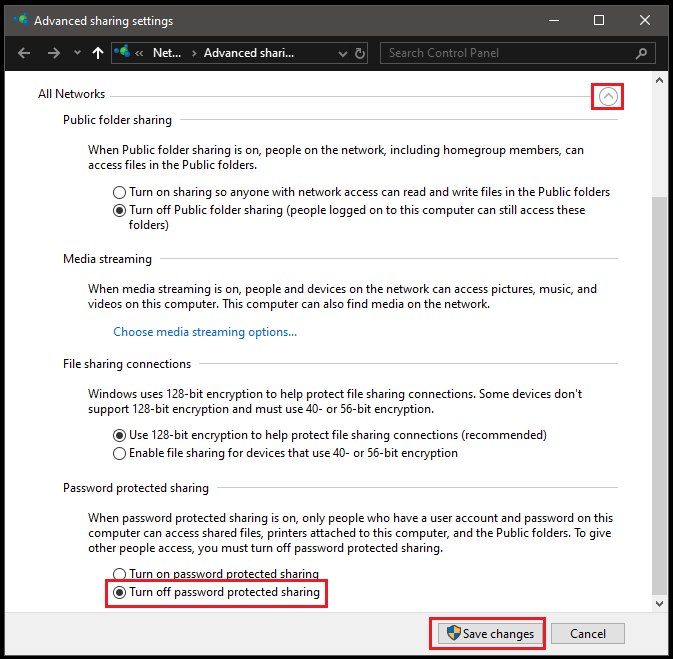
Open the "Sharing Options" in Windows.
Expand the "All Networks"
Set the "Password protected sharing" to "Turn off password protected sharing"
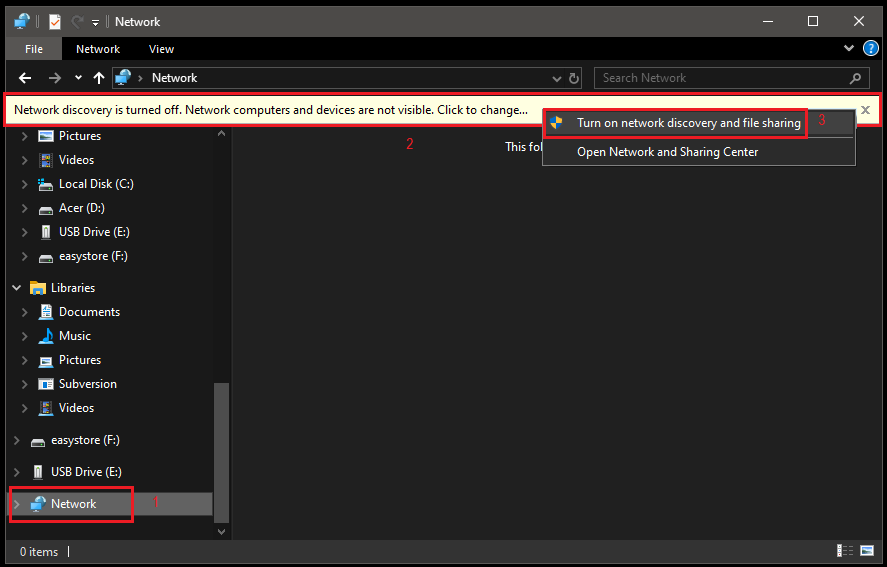
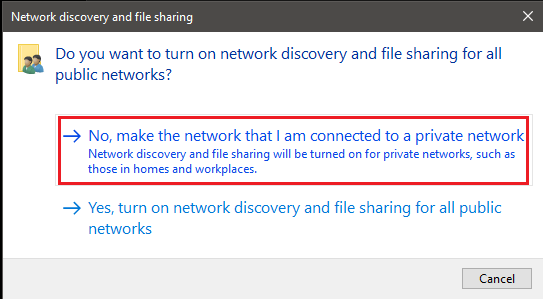
Turn on Network Discovery if you get a notice at the top.
Choose Private if you get an option to choose Public or Private.
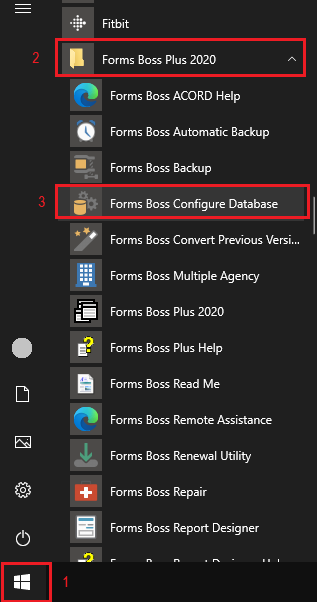
Open the Forms Boss Configure Database program.
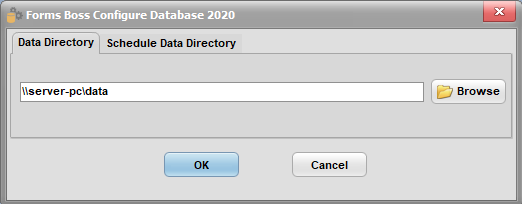
Type in the network path that you wrote down from the Server settings above.
Click OK. If you get an error, you may need to restart your computer and try again. If you continue to get an error, consult with your IT department about not being able to access the network path that you wrote down earlier.